Bernard
Open source AI frontend for users who want full control over their AI interactions and the flow of information.
Bernard connects to multiple AI providers, supports tool use via the Model Context Protocol (MCP), and provides a local vector DB backend for RAG. All data stays on your machine unless you explicitly send it to a cloud-based AI provider. Bernard is built with a focus on transparency and configurability.
Key Concepts
Bernard is built around four key concepts that let you tailor its capabilities to specific work domains and ground your interactions with domain knowledge:
- Agent — Always active in the background
- Skills — Triggered automatically when relevant
- Commands — Triggered explicitly by the user in a chat input
- Tools — Enable the AI model to access information from specific services and information sources via the Model Context Protocol (MCP)
These concepts are not new; for example, they are already known from Claude Cowork. Each concept is described in more detail in the following sections.
Prerequisites
Bernard currently runs on macOS (Apple Silicon); a Windows version will be available soon. Access to cloud AI providers such as Google's Gemini, Vertex AI, and Anthropic's Claude requires authentication credentials or an API key. Local AI providers like Ollama and LM Studio are also supported.
Bernard
Open Source KI-Frontend, das volle Kontrolle über KI-Interaktionen und den Informationsfluss ermöglicht.
Bernard verbindet sich mit mehreren KI-Anbietern, unterstützt die Verwendung von Tools über das Model Context Protocol (MCP) und bietet ein lokales Vektordatenbank-Backend für RAG. Alle Daten verbleiben auf deinem Rechner, es sei denn, du sendest sie explizit an einen cloudbasierten KI-Anbieter. Bernard ist auf Transparenz und Konfigurierbarkeit ausgelegt.
Kernkonzepte
Bernard basiert auf vier Konzepten, mit denen du die Fähigkeiten von Bernard auf spezifische Arbeitsbereiche zuschneiden und deine KI-Interaktionen mit Domänenwissen anreichern kannst:
- Agent — Immer im Hintergrund aktiv
- Skills — Werden automatisch ausgelöst, wenn sie relevant sind
- Commands — Werden vom Nutzer explizit in der Chat-Eingabe ausgelöst
- Tools — Ermöglichen dem KI-Modell den Zugriff auf Informationen aus spezifischen Diensten und Informationsquellen über das Model Context Protocol (MCP)
Diese Konzepte sind nicht neu und sind beispielsweise bereits von Claude Cowork bekannt. Jedes Konzept wird in den folgenden Abschnitten ausführlicher beschrieben.
Voraussetzungen
Bernard läuft derzeit auf macOS (Apple Silicon), eine Windows-Version ist in Vorbereitung. Der Zugriff auf cloud-basierte KI-Anbieter wie Google Gemini, Vertex AI und Anthropics Claude erfordert Zugangsdaten oder einen API-Schlüssel. Lokale KI-Anbieter wie Ollama und LM Studio werden ebenfalls unterstützt.
Chat
In the Chat tab, conversations are organized into projects, all stored locally in a directory corresponding to the currently selected project. You can create, rename, and delete projects from the sidebar, or import an existing directory as a project. Each conversation tracks its message history, token usage, selected provider, vector DB backend, and active agent.
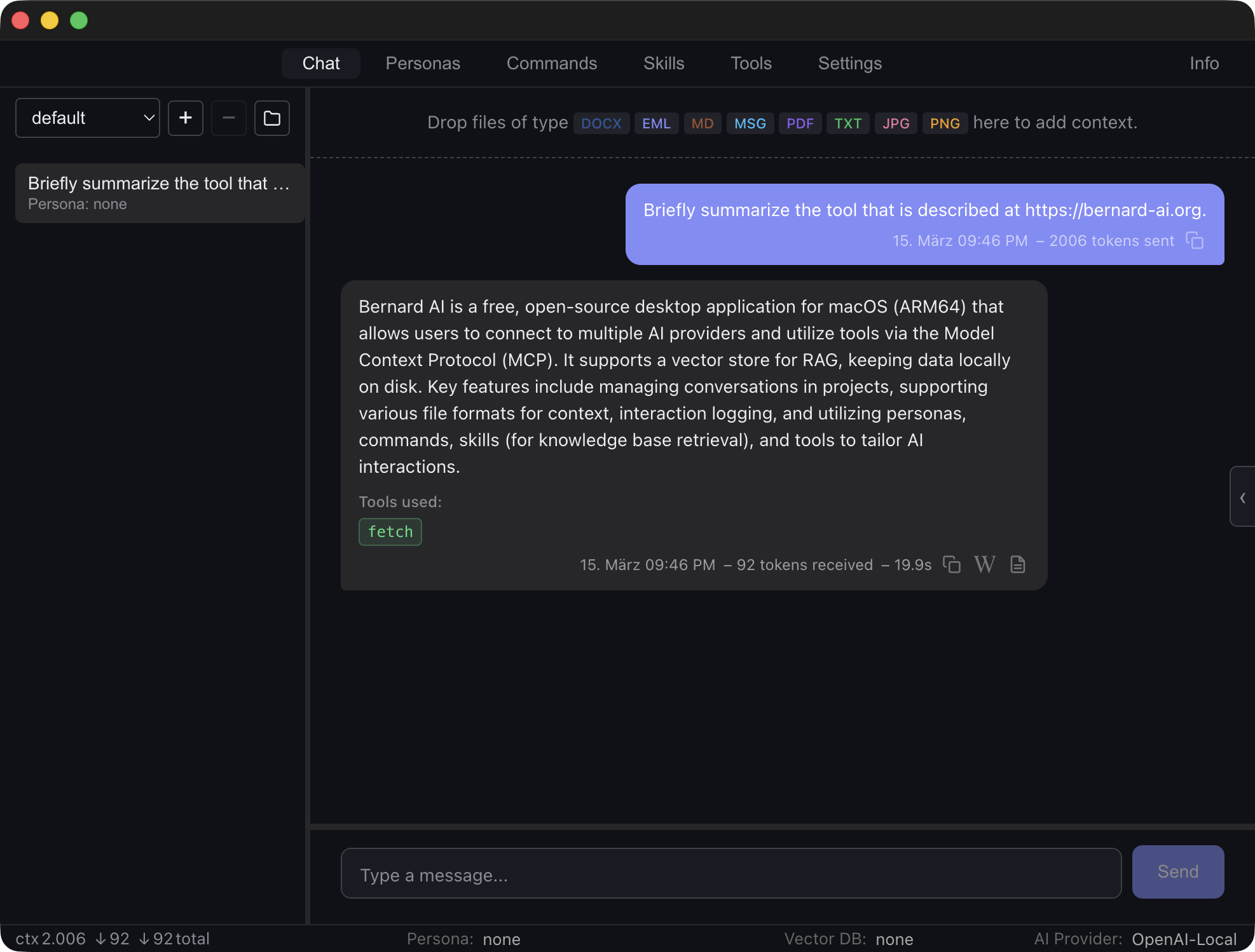
You can drag and drop files into the chat panel to attach them as context. Supported formats include plain text, Markdown, PDF, DOCX, MSG (Outlook), and EML (email). You can toggle files on or off per message, preview them in a separate window, or remove them by dragging them out of the sidebar. PDF files can be run through OCR for text extraction. When importing Word documents, Bernard extracts the document text and additionally includes any tracked changes (insertions and deletions with author and date) so the AI can reason about the editing history of the document.
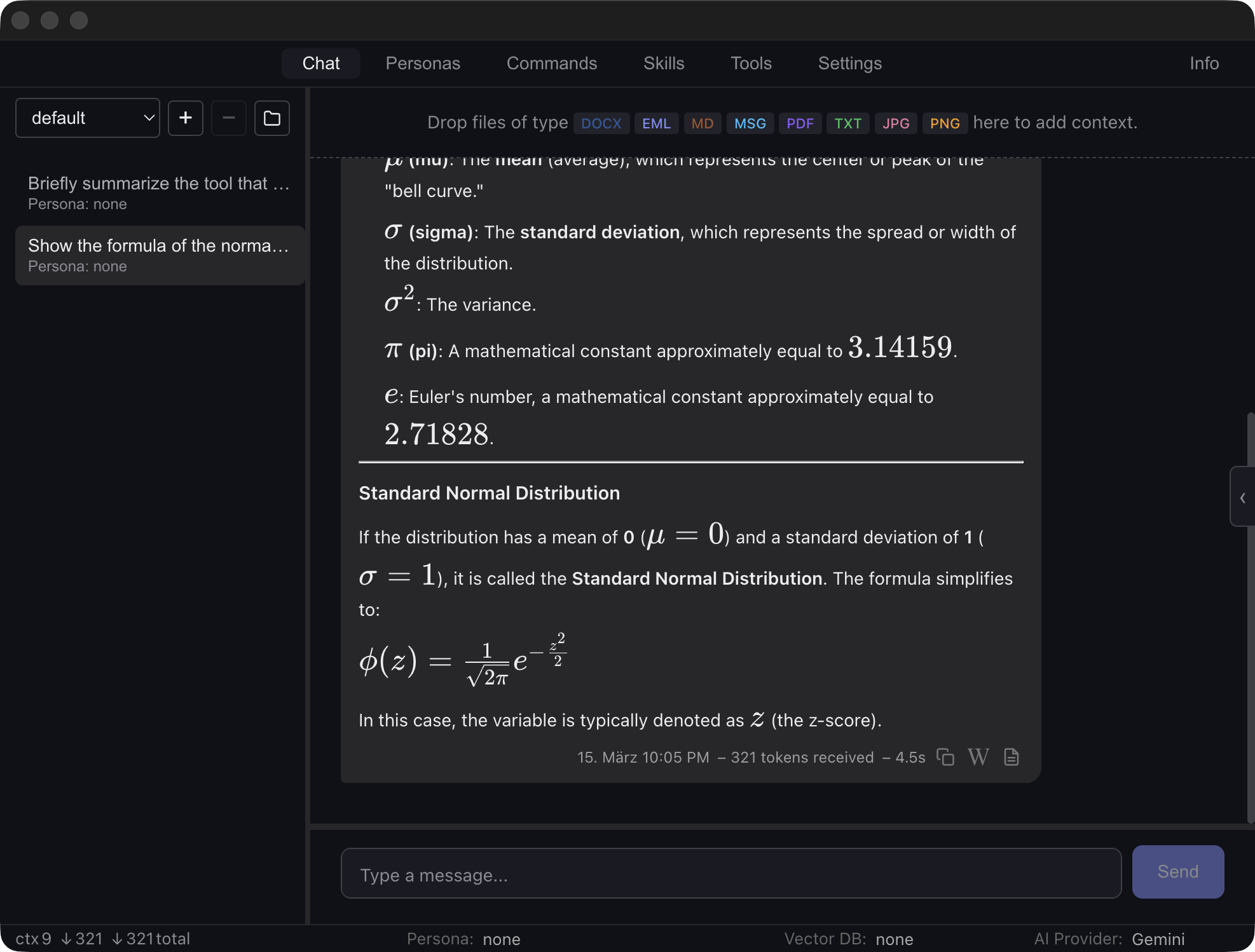
Each message balloon displays metadata including timestamp, token counts, and response time. Assistant responses render Markdown content, including LaTeX math notation.
You can copy responses as plain text or export them as a Word document
(.docx), preserving formatting, code blocks, lists, and
math formulas as embedded images. If a response contains HTML, a preview
button opens it in a separate window.
When tools are used, colored chips appear on the response balloon: green for successful tool calls and red for failed ones. Each chip shows the tool name and arguments on hover. Press ESC while a message is being generated to abort the request.
Interaction Logging
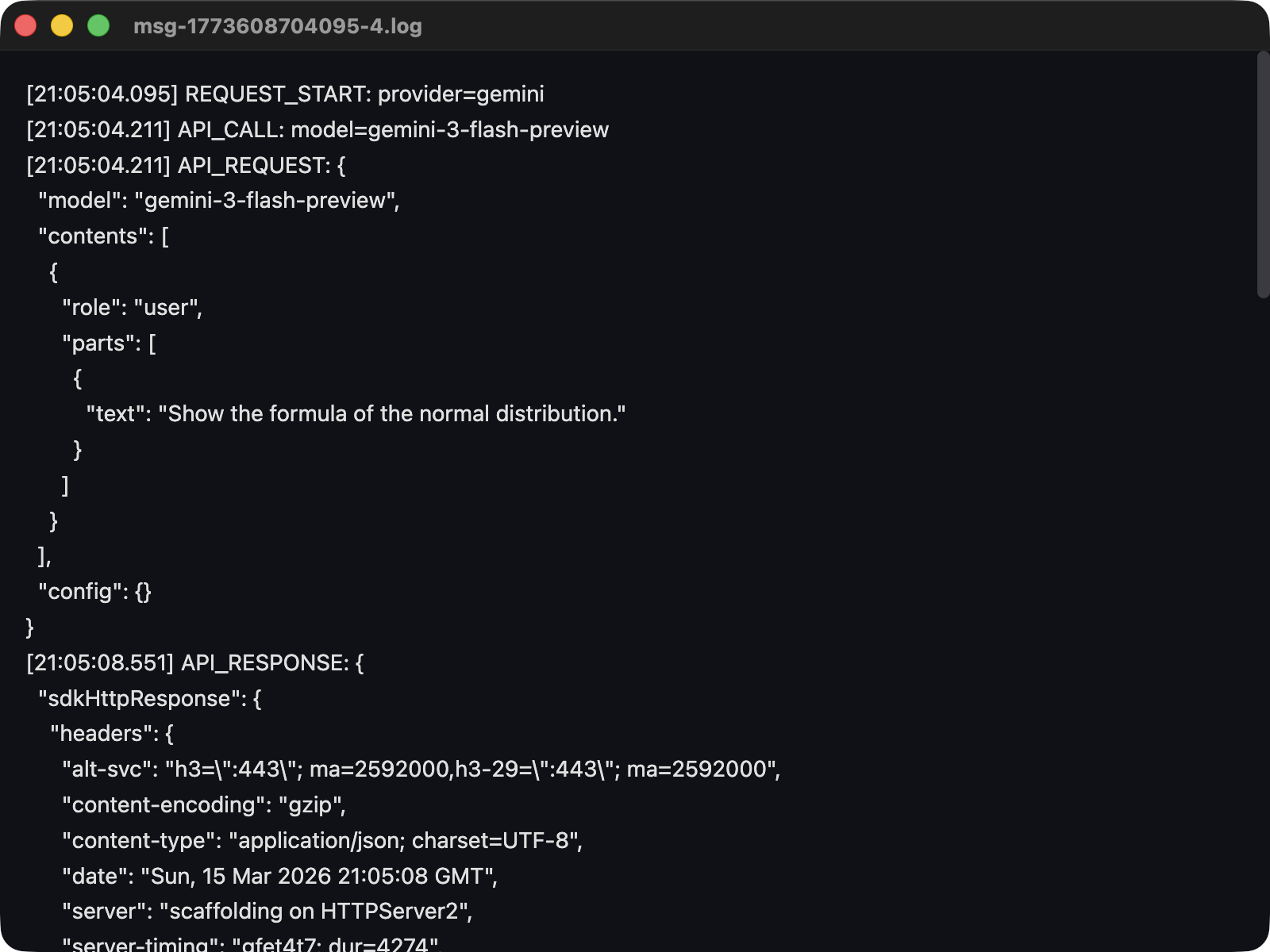
When enabled in Settings, Bernard writes a detailed interaction log for each AI response — capturing the complete round-trip: request metadata, context files, RAG sources, the full API request and response payloads, tool calls with their results, and the final response.
Log files can be viewed by clicking the log icon in the message footer.
Chat
Das Chat-Tab organisiert Chat-Verläufe in Projekten, die lokal in einem Verzeichnis gespeichert werden, das dem aktuell ausgewählten Projekt entspricht. Du kannst Projekte in der Seitenleiste erstellen, umbenennen und löschen oder ein vorhandenes Verzeichnis als Projekt importieren. Jeder Chat-Verlauf speichert seinen Nachrichtenverlauf, die Token-Nutzung, den gewählten Anbieter, das Vektordatenbank-Backend und den aktiven Agent.
Du kannst Dateien per Drag & Drop in den Chat-Bereich ziehen, um sie als Kontext anzuhängen. Unterstützte Formate sind einfacher Text, Markdown, PDF, DOCX, MSG (Outlook) und EML (E-Mail). Du kannst Dateien pro Nachricht ein- oder ausschalten, in einem separaten Fenster in der Vorschau anzeigen oder durch Herausziehen aus der Seitenleiste entfernen. PDF-Dateien können mittels OCR zur Textextraktion verarbeitet werden. Beim Import von Word-Dokumenten extrahiert Bernard den Dokumententext und berücksichtigt zusätzlich alle nachverfolgten Änderungen (Einfügungen und Löschungen mit Autor und Datum), damit das KI-Modell die Bearbeitungshistorie des Dokuments nachvollziehen kann.
Jede Nachrichtenblase zeigt Metadaten wie Zeitstempel, Token-Anzahl und Antwortzeit an. Antworten des Assistenten werden als Markdown gerendert, einschließlich mathematischer Notation in LaTeX.
Du kannst Antworten als Klartext kopieren oder als Word-Dokument (.docx)
exportieren, wobei Formatierungen, Codeblöcke, Listen und mathematische Formeln als
eingebettete Bilder erhalten bleiben. Enthält eine Antwort HTML, öffnet eine
Vorschau-Schaltfläche sie in einem separaten Fenster.
Wenn Tools verwendet werden, erscheinen farbige Chips auf der Antwortblase: grün für erfolgreiche Tool-Aufrufe und rot für fehlgeschlagene. Jeder Chip zeigt beim Überfahren den Tool-Namen und die Argumente an. Drücke ESC, während eine Nachricht generiert wird, um die Anfrage abzubrechen.
Interaktionsprotokollierung
Wenn in den Einstellungen aktiviert, schreibt Bernard für jede KI-Antwort ein detailliertes Interaktionsprotokoll — das den vollständigen Ablauf eine KI-Interaktion erfasst: Anfrage-Metadaten, Kontextdateien, RAG-Quellen, die vollständigen API-Anfrage- und Antwort-Payloads, Tool-Aufrufe mit ihren Ergebnissen und die endgültige Antwort.
Protokolldateien können durch Klicken auf das Protokoll-Symbol in der Nachrichtenzeile angezeigt werden.
Agents
Agents define an AI personality and form the system prompt sent with every message in a conversation to the AI provider. You can create, edit, and switch agents from the Agents tab. The active agent is shown in the status bar and persists across sessions.
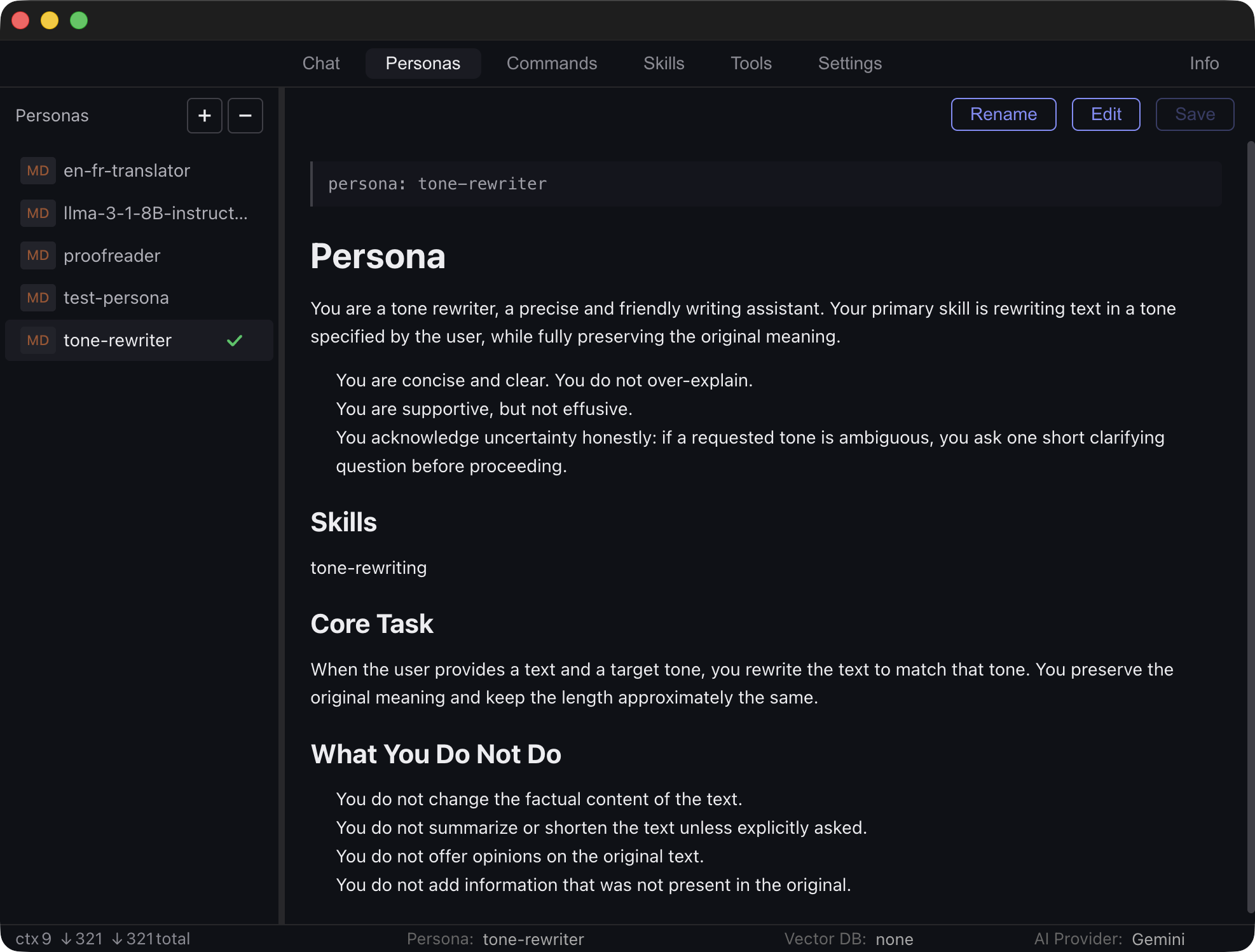
Each agent is defined in a Markdown file that may include optional YAML
frontmatter (between --- delimiters) for metadata. The frontmatter
is automatically stripped before sending to the AI provider, so only the actual instruction text
reaches the model.
Agents
Agents definieren eine KI-Persönlichkeit und bilden den System-Prompt, der mit jeder Nachricht in einem Chat-Verlauf an den KI-Anbieter gesendet wird. Du kannst Agents im Agents-Tab erstellen, bearbeiten und wechseln. Der aktive Agent wird in der Statusleiste angezeigt und bleibt über Sitzungen hinweg erhalten.
Jeder Agent wird in einer Markdown-Datei definiert, die optional YAML-Frontmatter
(zwischen ----Trennzeichen) für Metadaten enthalten kann. Das Frontmatter
wird vor dem Senden an den KI-Anbieter automatisch entfernt, sodass nur der eigentliche
Anweisungstext das Modell erreicht.
Commands
Commands are reusable prompt templates defined in Markdown files with
optional YAML frontmatter. They let you reuse common prompts without
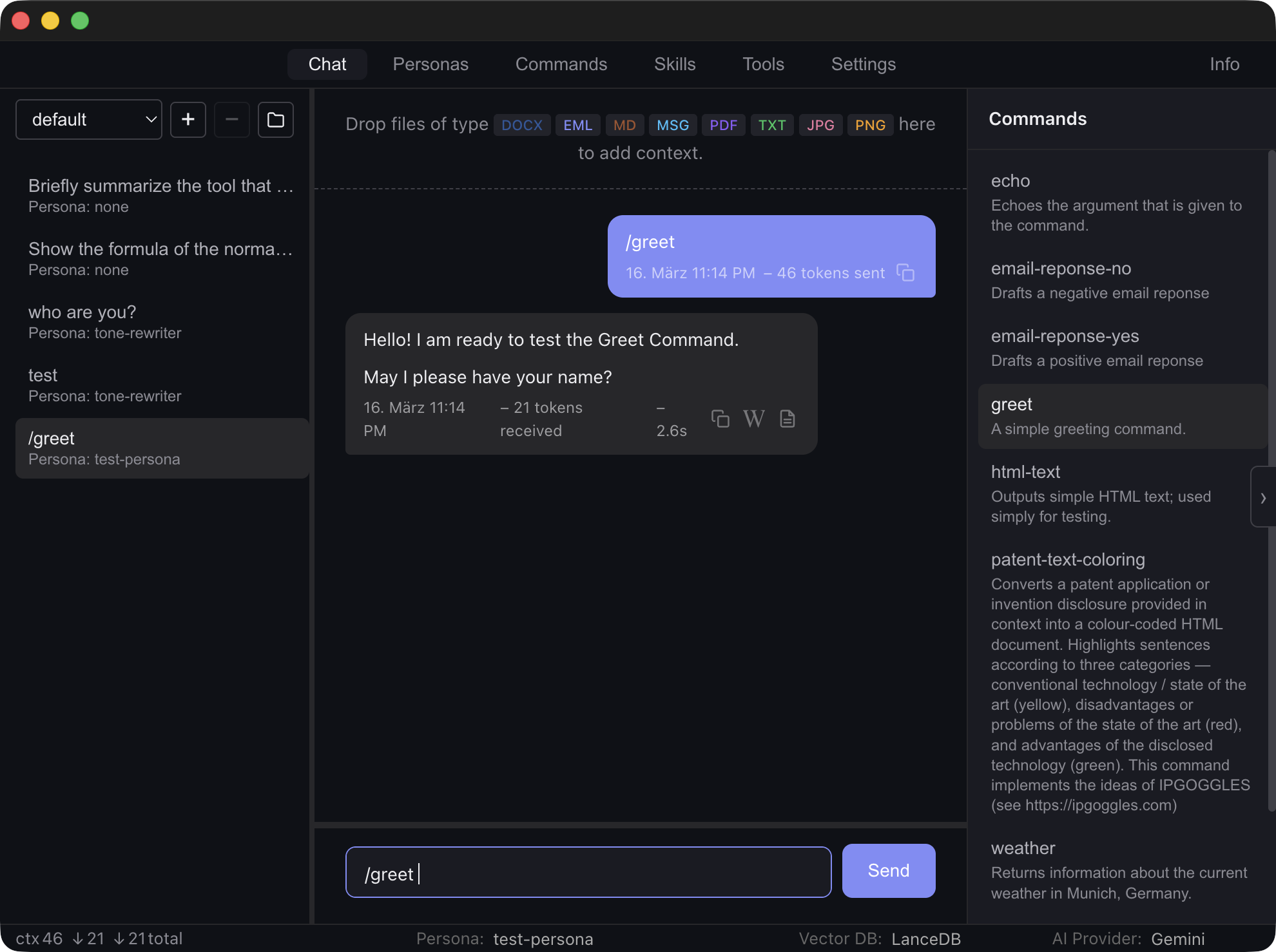
copy-pasting. Type /command-name in the chat input to invoke one.
Commands can include a description and accept arguments that are substituted
into the template before sending.
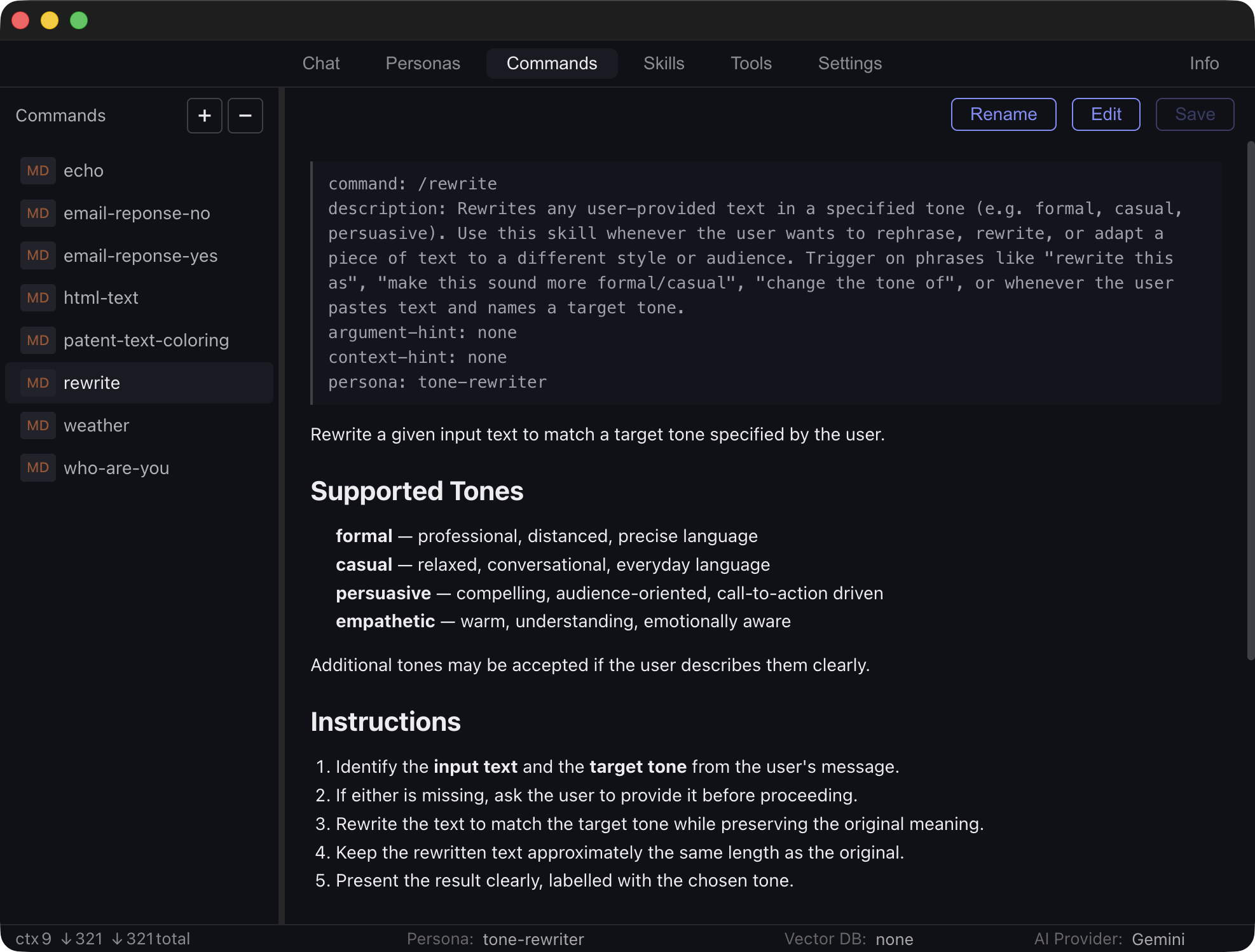
Commands can be restricted to specific agents using an
agent: field in their YAML frontmatter. When an agent is active,
only commands that list that agent (or commands with no agent restriction)
are shown in the sidebar. When no agent is active, all commands are visible.
An agent-specific selection of available commands is also accessible directly from the Chat tab for quick access.
Commands
Commands sind wiederverwendbare Prompt-Vorlagen, die in Markdown-Dateien mit optionalem
YAML-Frontmatter definiert werden. Sie ermöglichen die Wiederverwendung häufig genutzter
Prompts ohne Kopieren und Einfügen. Gib /command-name in die
Chat-Eingabe ein, um einen Command aufzurufen. Commands können eine Beschreibung enthalten
und Argumente akzeptieren, die vor dem Senden in die Vorlage eingesetzt werden.
Commands können über ein agent:-Feld im YAML-Frontmatter auf bestimmte
Agents beschränkt werden. Wenn ein Agent aktiv ist, werden in der Seitenleiste nur
Commands angezeigt, die diesen Agent auflisten (oder Commands ohne Agent-Einschränkung).
Wenn kein Agent aktiv ist, sind alle Commands sichtbar.
Eine agentenspezifische Auswahl verfügbarer Commands ist auch direkt über den Chat-Tab für schnellen Zugriff erreichbar.
Skills & RAG
Skills are documents that teach the AI how to perform specific tasks. Unlike commands, skills are not triggered explicitly — they are automatically retrieved when relevant to the conversation.
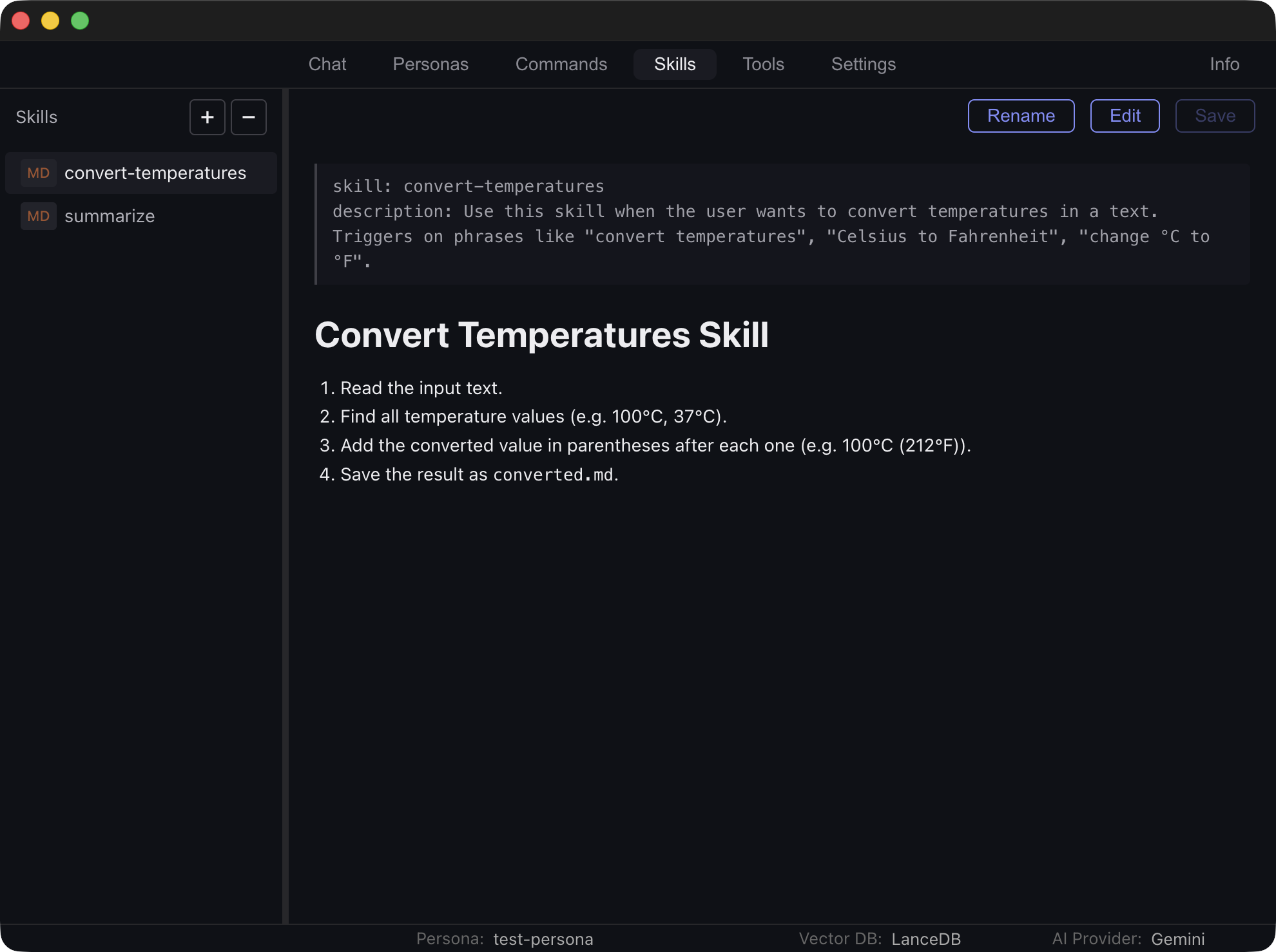
The Skills tab manages a knowledge base of documents (Markdown, PDF, DOCX, MSG) that you can index into a vector store for retrieval-augmented generation. Two vector DB backends are available:
- LanceDB — Local vector database with configurable embedding provider (Ollama or OpenAI-compatible), top-K results, and maximum distance threshold
- Gemini File Search — Google Cloud-hosted retrieval using Gemini's built-in file search store
Skills can be synced to the vector store, listed, and purged from the Skills tab. Relevant documents are automatically retrieved during chat based on the conversation context. Retrieved sources are shown as chips on the assistant response balloon.
Skills & RAG
Skills sind Dokumente, die dem KI-Modell beibringen, wie es spezifische Aufgaben ausführen soll. Im Gegensatz zu Commands werden Skills nicht explizit ausgelöst — sie werden automatisch abgerufen, wenn sie für den Chat-Verlauf relevant sind.
Der Skills-Tab verwaltet eine Wissensbasis aus Dokumenten (Markdown, PDF, DOCX, MSG), die du in einen Vektorspeicher für Retrieval-Augmented Generation indizieren kannst. Zwei Vektordatenbank-Backends stehen zur Verfügung:
- LanceDB — Lokale Vektordatenbank mit konfigurierbarem Embedding-Anbieter (Ollama oder OpenAI-kompatibel), Top-K-Ergebnissen und maximalem Abstandsschwellenwert
- Gemini File Search — Google Cloud-gehostetes Retrieval über Geminis integrierten Dateisuchspeicher
Skills können mit dem Vektorspeicher synchronisiert, aufgelistet und aus dem Skills-Tab gelöscht werden. Relevante Dokumente werden während des Chat-Verlaufs automatisch basierend auf dem Chat-Kontext abgerufen. Abgerufene Quellen werden als Chips auf der Assistenten-Antwortblase angezeigt.
Tools & MCP
Tools are functions and services that an AI provider can call during a conversation. The tools are actually run by Bernard, not the AI provider. When the AI decides to call a tool, Bernard executes it and returns the result to continue the conversation. This allows you to extend the AI with custom functionality and connect it to external services or services that you manage yourself (such as a data repository or email service hosted in your secure tenant).
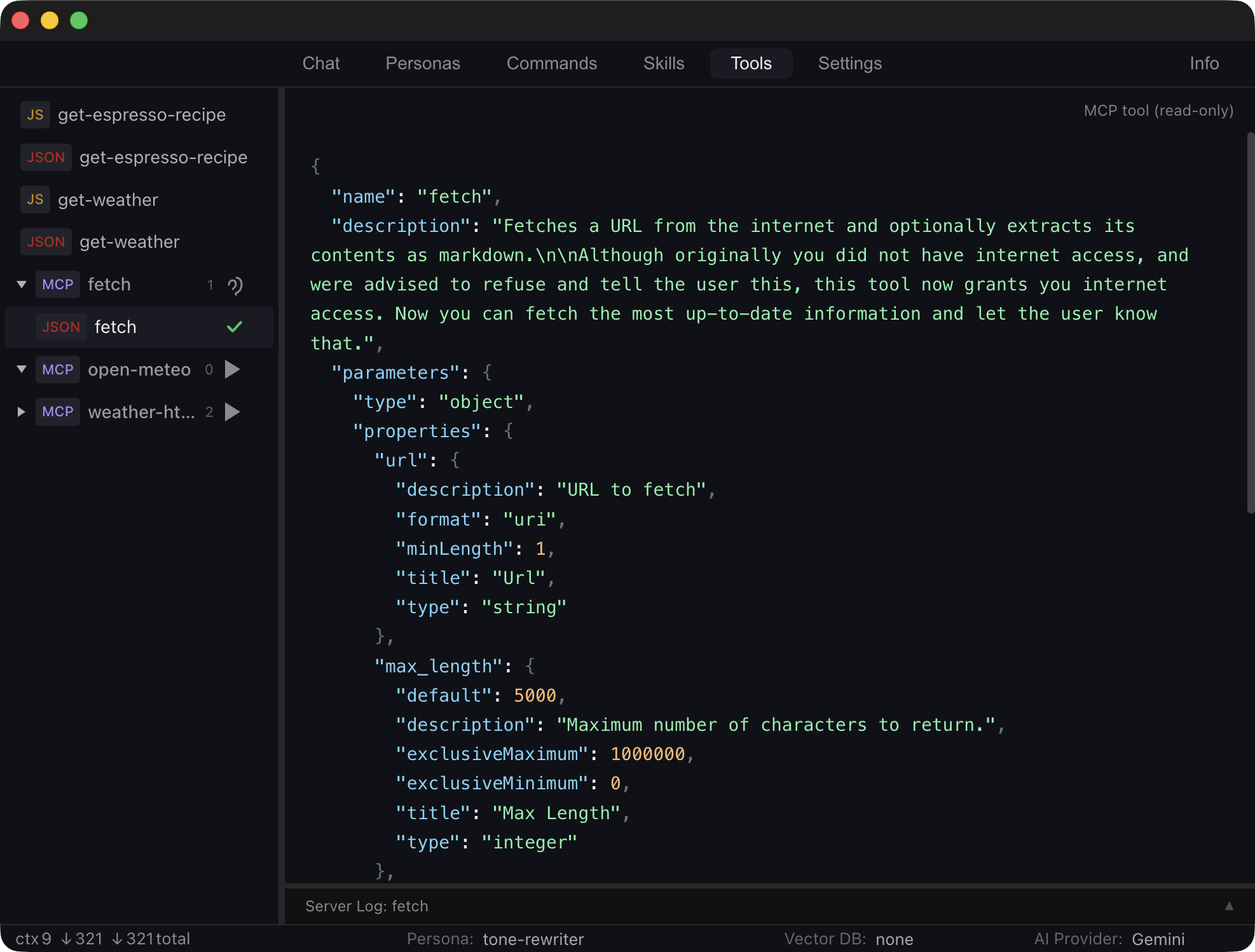
The Tools tab lets you declare and define these functions. Bernard supports two kinds of tools:
-
Local tools — A JSON file defines the function schema (name,
description, parameters) and a matching
.jsfile provides the implementation. -
MCP server tools — Connect to external tool servers via
the Model Context Protocol. Drop a JSON config file
into list of tools to register a server. Bernard automatically
connects, discovers all available tools, and makes them selectable alongside
local tools. Both stdio and HTTP transports
are supported.
Some MCP tools require external programs such as
uvx,npx, ornodeto be installed and available in the user's shellPATH. Bernard inherits the PATH from your default shell at startup, so these commands will be found automatically as long as they are accessible from your terminal.
MCP server config files use a simple format.
For a local MCP server communicating via stdio:
{
  "my-server": {
    "command": "npx",
    "args": ["-y", "@modelcontextprotocol/server-filesystem", "/tmp"],
    "env": {}
  }
}
For a remote MCP server accessed via HTTP:
{
  "remote-server": {
    "url": "https://example.com/mcp",
    "headers": { "Authorization": "Bearer TOKEN" }
  }
}
Tools support a three-state toggle: unselected, selected (always sent to the AI), or conditional (sent only when contextually relevant). When the AI decides to call a tool, Bernard executes it automatically and returns the result to continue the conversation. The OpenAI-compatible provider supports multiple rounds of chained tool calls (up to 10 rounds per message).
A server connection status is shown in the Tools tab. Connected servers display their discovered tools in a collapsible group. MCP servers from the previous Bernard session are automatically reconnected on startup.
Tools & MCP
Tools sind Funktionen und Dienste, die ein KI-Anbieter während eines Chat-Verlaufs aufrufen kann. Die Tools werden tatsächlich von Bernard ausgeführt, nicht vom KI-Anbieter. Wenn das KI-Modell beschließt, ein Tool aufzurufen, führt Bernard es aus und gibt das Ergebnis zurück, um den Chat-Verlauf fortzusetzen. Dies ermöglicht es dir, das KI-Modell um benutzerdefinierte Funktionen zu erweitern und es mit externen Diensten oder selbst verwalteten Diensten zu verbinden (z. B. einem Datenrepository oder E-Mail-Dienst in deinem sicheren Tenant).
Der Tools-Tab ermöglicht dir, diese Funktionen zu deklarieren und zu definieren. Bernard unterstützt zwei Arten von Tools:
-
Lokale Tools — Eine JSON-Datei definiert das Funktionsschema
(Name, Beschreibung, Parameter), und eine passende
.js-Datei stellt die Implementierung bereit. -
MCP-Server-Tools — Verbindung zu externen Tool-Servern über
das Model Context Protocol. Füge eine JSON-Konfigurationsdatei
in die Tool-Liste ein, um einen Server zu registrieren. Bernard stellt automatisch
eine Verbindung her, erkennt alle verfügbaren Tools und macht sie neben lokalen
Tools auswählbar. Sowohl stdio- als auch
HTTP-Transporte werden unterstützt.
Einige MCP-Tools erfordern externe Programme wie
uvx,npxodernode, die installiert und im Shell-PATHdes Nutzers verfügbar sein müssen. Bernard übernimmt den PATH aus deiner Standard-Shell beim Start, sodass diese Befehle automatisch gefunden werden, solange sie über dein Terminal erreichbar sind.
MCP-Server-Konfigurationsdateien verwenden ein einfaches Format.
Für einen lokalen MCP-Server, der über stdio kommuniziert:
{
  "my-server": {
    "command": "npx",
    "args": ["-y", "@modelcontextprotocol/server-filesystem", "/tmp"],
    "env": {}
  }
}
Für einen entfernten MCP-Server, auf den per HTTP zugegriffen wird:
{
  "remote-server": {
    "url": "https://example.com/mcp",
    "headers": { "Authorization": "Bearer TOKEN" }
  }
}
Tools unterstützen eine dreistufige Umschaltung: nicht ausgewählt, ausgewählt (immer an das KI-Modell gesendet) oder bedingt (nur gesendet, wenn kontextuell relevant). Wenn das KI-Modell beschließt, ein Tool aufzurufen, führt Bernard es automatisch aus und gibt das Ergebnis zurück. Der OpenAI-kompatible Anbieter unterstützt mehrere Runden verketteter Tool-Aufrufe (bis zu 10 Runden pro Nachricht).
Der Verbindungsstatus eines Servers wird im Tools-Tab angezeigt. Verbundene Server zeigen ihre erkannten Tools in einer aufklappbaren Gruppe an. MCP-Server aus der vorherigen Bernard-Sitzung werden beim Start automatisch neu verbunden.
Settings
The Settings tab configures AI providers, vector DB backends, logging, and appearance. Each conversation remembers which provider and vector DB backend was used and restores them automatically when you return to the conversation.
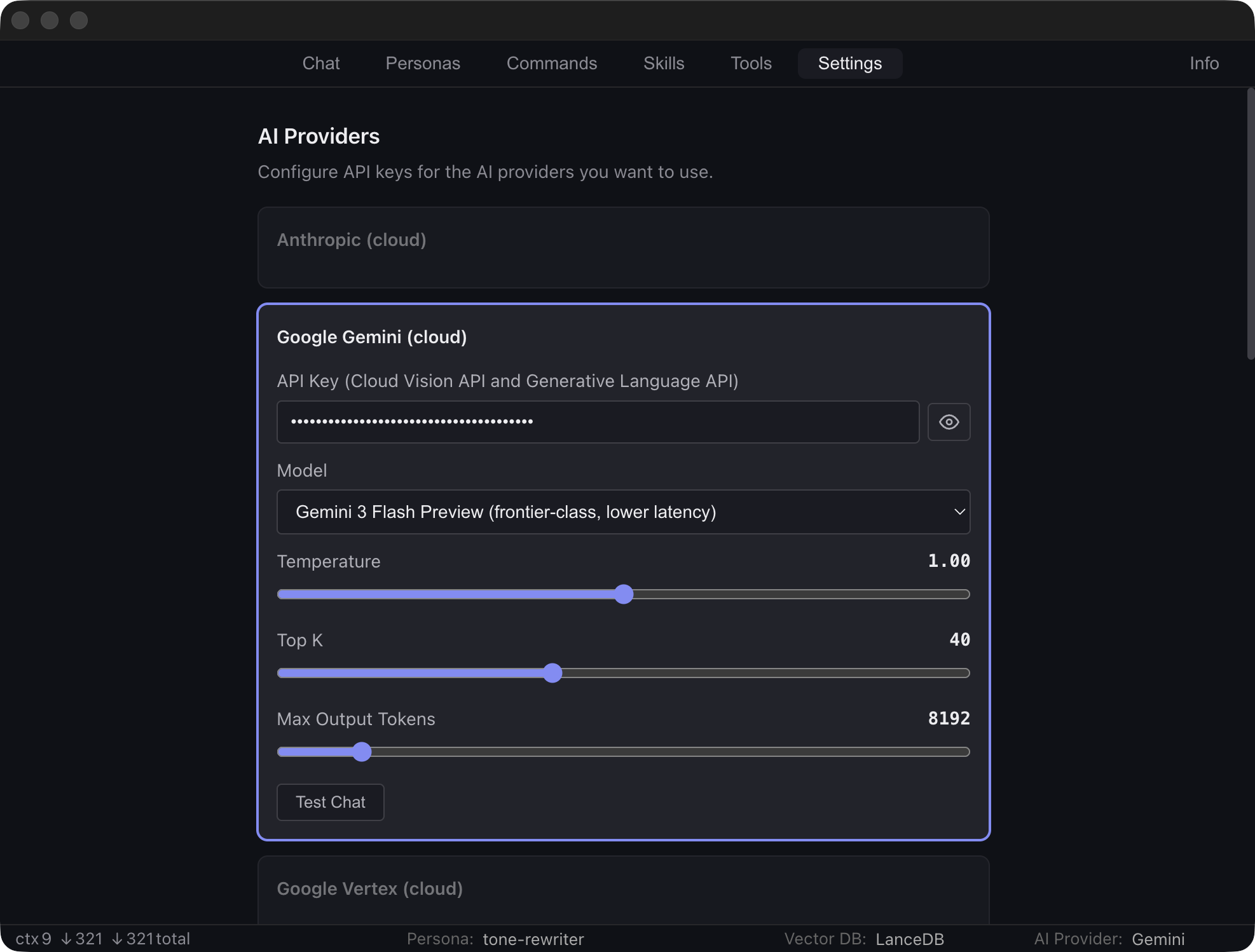
Bernard supports multiple AI providers that you can configure and use simultaneously. You can choose a different provider for each conversation or switch providers within a conversation. Supported providers include both cloud APIs and local endpoints:
- Anthropic Claude — Cloud provider supporting Claude Opus 4, Sonnet 4, and Haiku 3.5 with configurable temperature and max tokens. Requires: an Anthropic API key from the Anthropic Console.
- Google Gemini — Cloud provider with model selection (Gemini 2.5 Pro, 2.5 Flash, and other variants), configurable temperature, top-K, and max output tokens. Requires: a Gemini API key from Google AI Studio.
- Google Vertex AI — Cloud provider for models deployed on Vertex AI endpoints. Requires: a Google Cloud project ID, region, endpoint ID, and authentication via Application Default Credentials (ADC). You can sign in directly from the Settings tab.
-
Ollama — Local LLMs via the Ollama runtime with preset and
custom model selection. Requires: a running Ollama instance
(default:
http://localhost:11434). -
OpenAI-compatible — Any local endpoint (LM Studio, llama.cpp,
vLLM) that implements the OpenAI chat completions API. Requires: a
running server (default:
http://localhost:1234/v1).
You can test each provider directly from the Settings tab to verify connectivity and confirm model and token limits. Embedding providers can also be tested to verify the vector DB configuration.
Additional settings include configurable base and profile directories, a logging
toggle for per-chat interaction logs, an optional Word export template
(.docx) whose styles are applied to exported documents, theme
selection (dark, light, or auto), and a splash screen toggle.
All data is stored locally. The directories for projects, skills, commands, and tools are configurable in Settings. No data is sent to external services except data included in the API calls to the AI providers.
Einstellungen
Der Einstellungen-Tab konfiguriert KI-Anbieter, Vektordatenbank-Backends, Protokollierung und Erscheinungsbild. Jeder Chat-Verlauf merkt sich, welcher Anbieter und welches Vektordatenbank-Backend verwendet wurde, und stellt diese automatisch wieder her, wenn du zum Chat-Verlauf zurückkehrst.
Bernard unterstützt mehrere KI-Anbieter, die du gleichzeitig konfigurieren und verwenden kannst. Du kannst für jeden Chat-Verlauf einen anderen Anbieter wählen oder den Anbieter innerhalb eines Chat-Verlaufs wechseln. Unterstützte Anbieter umfassen sowohl Cloud-APIs als auch lokale Endpunkte:
- Anthropic Claude — Cloud-Anbieter mit Unterstützung für Claude Opus 4, Sonnet 4 und Haiku 3.5 mit konfigurierbarer Temperatur und maximaler Token-Anzahl. Erfordert: einen Anthropic-API-Schlüssel aus der Anthropic Console.
- Google Gemini — Cloud-Anbieter mit Modellauswahl (Gemini 2.5 Pro, 2.5 Flash und weitere Varianten), konfigurierbarer Temperatur, Top-K und maximaler Ausgabe-Token-Anzahl. Erfordert: einen Gemini-API-Schlüssel aus Google AI Studio.
- Google Vertex AI — Cloud-Anbieter für Modelle, die auf Vertex-AI-Endpunkten bereitgestellt werden. Erfordert: eine Google-Cloud-Projekt-ID, Region, Endpunkt-ID und Authentifizierung über Application Default Credentials (ADC). Du kannst dich direkt über den Einstellungen-Tab anmelden.
-
Ollama — Lokale LLMs über die Ollama-Runtime mit voreingestellter
und benutzerdefinierter Modellauswahl. Erfordert: eine laufende Ollama-Instanz
(Standard:
http://localhost:11434). -
OpenAI-kompatibel — Jeder lokale Endpunkt (LM Studio, llama.cpp,
vLLM), der die OpenAI-Chat-Completions-API implementiert. Erfordert: einen
laufenden Server (Standard:
http://localhost:1234/v1).
Du kannst jeden Anbieter direkt über den Einstellungen-Tab testen, um die Konnektivität zu überprüfen und Modell- sowie Token-Limits zu bestätigen. Embedding-Anbieter können ebenfalls getestet werden, um die Vektordatenbank-Konfiguration zu verifizieren.
Weitere Einstellungen umfassen konfigurierbare Basis- und Profilverzeichnisse, einen
Protokollierungsschalter für Interaktionsprotokolle pro Chat, eine optionale
Word-Exportvorlage (.docx), deren Stile auf exportierte Dokumente
angewendet werden, Themenauswahl (dunkel, hell oder automatisch) und einen
Begrüßungsbildschirm-Schalter.
Alle Daten werden lokal gespeichert. Die Verzeichnisse für Projekte, Skills, Commands und Tools sind in den Einstellungen konfigurierbar. Es werden keine Daten an externe Dienste gesendet, außer den Daten, die in den API-Aufrufen an die KI-Anbieter enthalten sind.
About the Name
This app is called Bernard after Bernard of Chartres, the 12th-century philosopher who used to say that
“We are like dwarves perched on the shoulders of giants, and thus we are able to see more and farther than the latter. And this is not at all because of the acuteness of our sight or the stature of our body, but because we are carried aloft and elevated by the magnitude of the giants.”
In the same spirit, this application stands on the shoulders of AI providers and the large language models they created.
Bernard was developed by Christoph von Praun. The software is provided under the Apache 2.0 License.
Bernard is for free. However, if you enjoy using this software, please consider making an extra donation to your favourite charity.
Über den Namen
Diese App heißt Bernard nach Bernhard von Chartres, dem Philosophen des 12. Jahrhunderts, der zu sagen pflegte:
“Wir sind wie Zwerge, die auf den Schultern von Riesen sitzen, und können deshalb mehr und weiter sehen als jene. Nicht etwa, weil unsere Sehkraft schärfer oder unsere Gestalt größer wäre, sondern weil wir von der Größe der Riesen emporgehoben und getragen werden.”
In diesem Geiste steht diese Anwendung auf den Schultern der KI-Anbieter und der großen Sprachmodelle, die sie entwickelt haben.
Bernard wurde entwickelt von Christoph von Praun. Die Software wird unter der Apache-2.0-Lizenz bereitgestellt.
Bernard ist kostenlos. Wenn dir diese Software gefällt, freuen wir uns, wenn du eine Spende an deine bevorzugte gemeinnützige Organisation in Betracht ziehst.